
Help guide
KLO Meetings runs and minutes your company's meetings.
- Every meeting has an agenda, with a time for each section and a lead for each item.
- Every item gets an outcome: Accept, Conditional, Return or N/A. A condition says what must happen, who owns it and by when, and an action chases it.
- The minutes are locked, so they can't change by accident, and printed or saved.
- Your company's projects and their meetings are kept on your company's SharePoint, so everyone sees the same record, and the minutes are saved in the project's folder.
- A scheme's meeting can come from KLO Pre-Con. It's kept on the scheme's SharePoint, and its locked minutes are filed in the scheme's Document Control project.
- It works on iPhone, iPad and Mac. Anyone else uses the web page.
Contents
- Words used in this guide
- Try it first, on a meeting of your own
- Run the meeting
- Lock the meeting and issue the minutes
- Agendas
- Your company's projects, on SharePoint
- A scheme's meeting, from KLO Pre-Con
- Backups
- Your meetings on the Sites screen
- The web page, for Windows users
- Getting help
1. Words used in this guide
- Meeting: one sitting, with its agenda, outcomes, actions and minutes. The app calls one a site meeting.
- Agenda: the sections and items a meeting works through. The app calls it the template. A meeting takes a copy of the agenda when it's made, so changing the agenda later never changes a meeting already held.
- Outcome: what was decided for an item: Accept, Conditional, Return or N/A.
- Condition: for a Conditional item, what must happen, who owns it and by when.
- Action: a task from the meeting, with an owner and a due date.
- Project: one of your company's projects, kept in a folder on its SharePoint, with its meetings.
- Scheme: a lead or a project in KLO Pre-Con, if your company uses it (section 7). Each meeting step of its procedure has an agenda here.
2. Try it first, on a meeting of your own
A meeting of your own is kept on your device, and nothing is sent anywhere. It needs no Microsoft 365.
-
On the Sites screen, choose New site meeting.
-
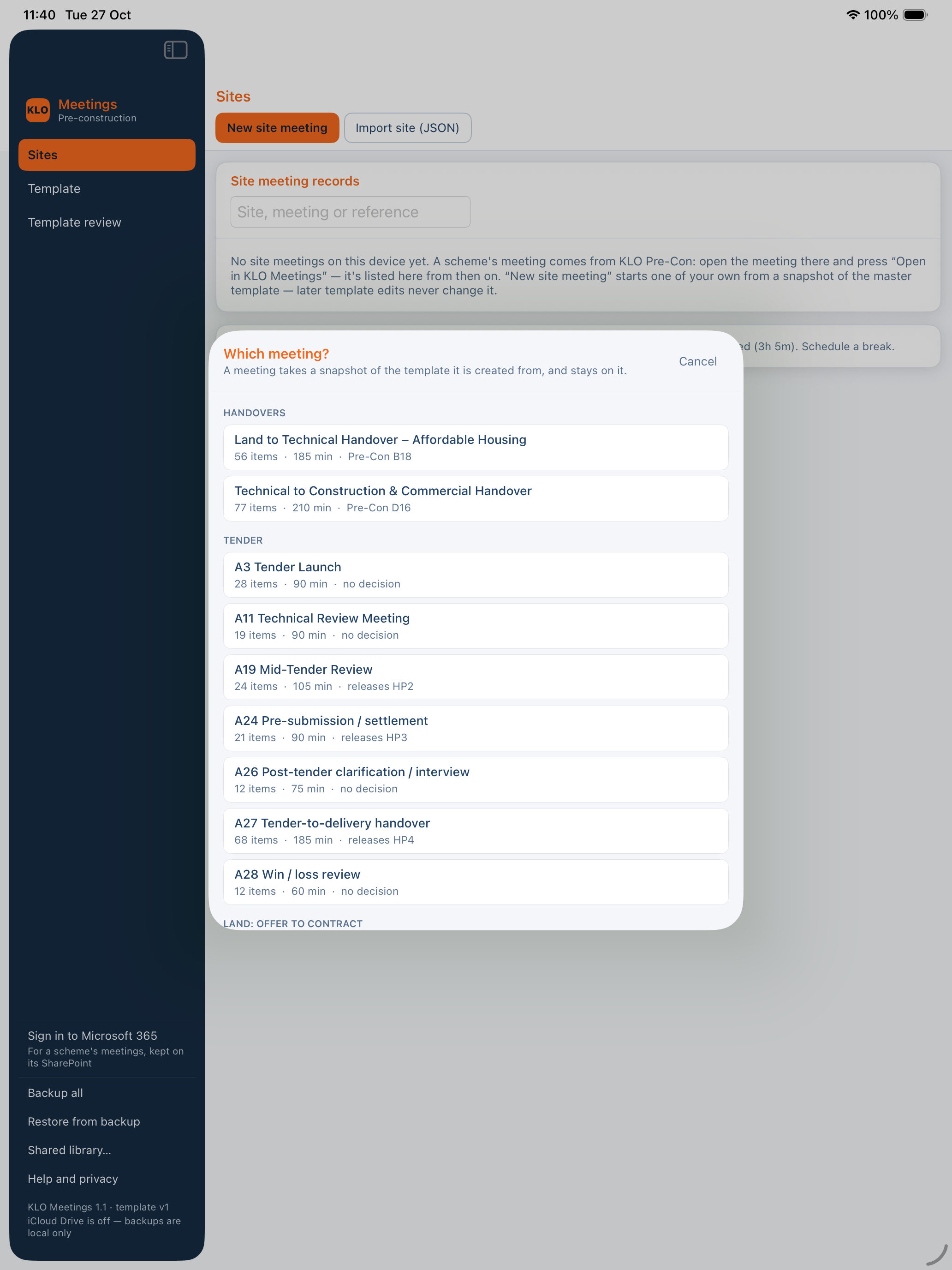
Pick an agenda. Each shows how many items it has, how long it should take, and what it decides.
-
Type the site's name and choose Create. The meeting opens.
3. Run the meeting
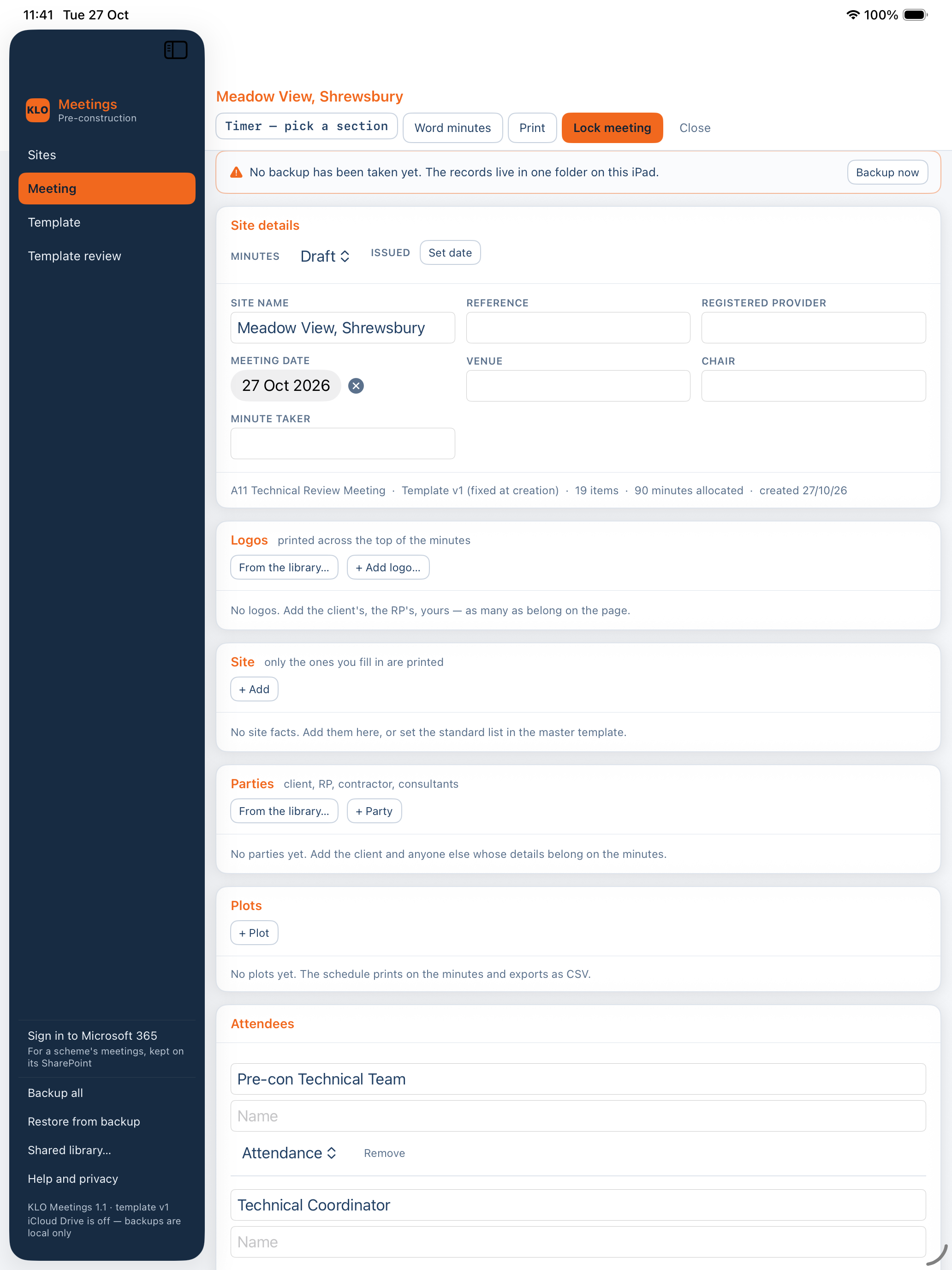
Before the meeting
- Site details: the site's name, reference, registered provider, meeting date, venue, chair and minute taker. The reference names the exported file, and the meeting can't be locked without it.
- Logos: printed across the top of the minutes. From the library… takes one you've used before; + Add logo… adds a picture file.
- Site: facts about the site, such as the number of plots. Only the ones you fill in are printed.
- Parties: the client, the registered provider, the contractor and consultants. From the library… takes a party you've used before. The shared library (in the sidebar, Shared library…) is shared with the other KLO apps on your devices, and can take a person from your Contacts.
- Plots: a plot schedule, printed on the minutes.
- Attendees: a row for each role the agenda expects. Type each person's name and set their Attendance.
During the meeting
-
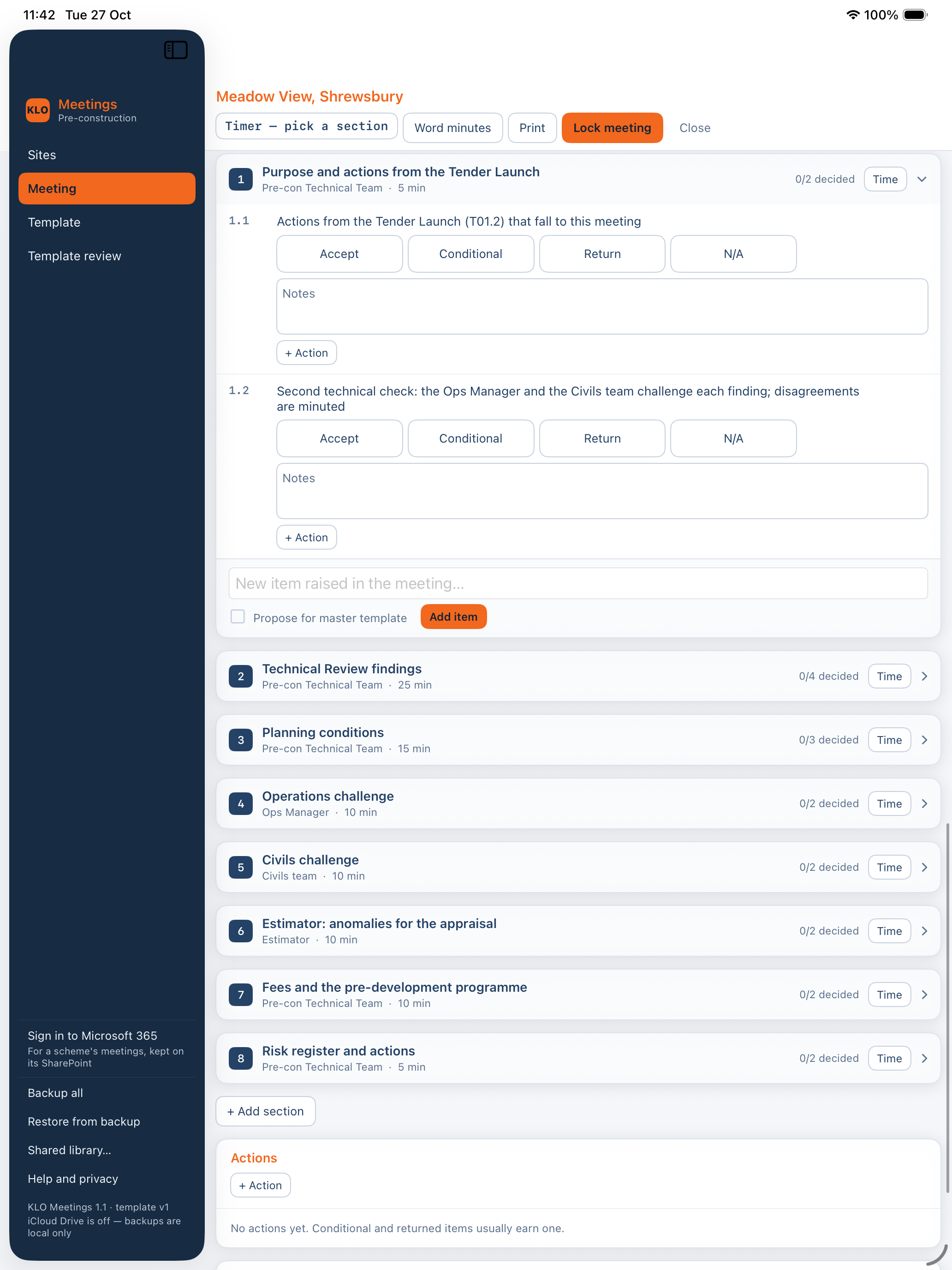
Sections: tap a section to open it. Each shows its lead, its time and how many of its items are decided.
-
Timer: choose Time on a section to start its timer. The timer in the bar shows the time used against the section's allowance. It turns amber at four fifths of the allowance and red when it's over. Pause stops it.
-
Outcomes: for each item, choose Accept, Conditional, Return or N/A, and add notes.
-
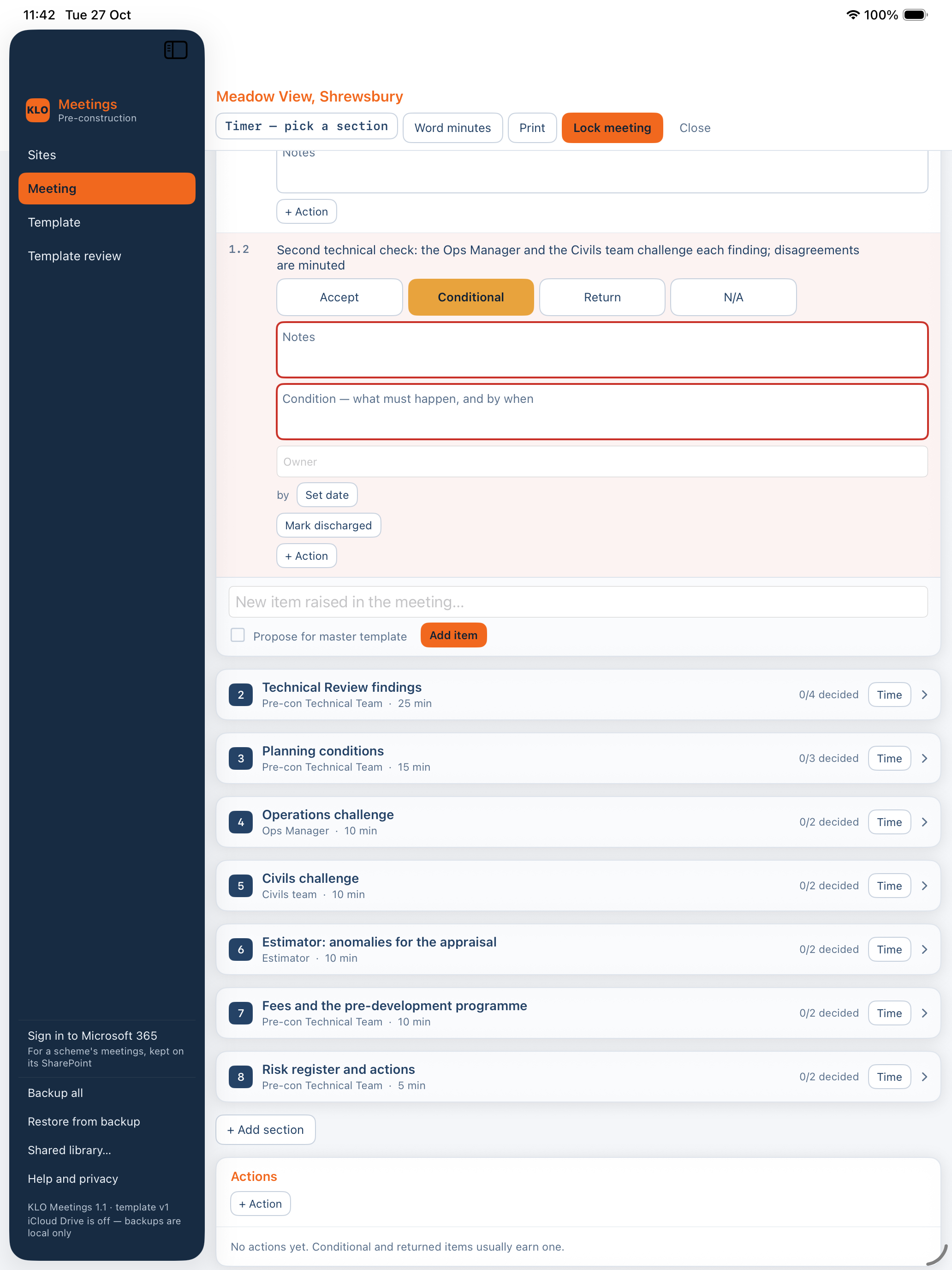
Conditional: the item needs notes, the condition (what must happen, and by when), an Owner, a date (by › Set date) and an action to chase it (+ Action). When the condition is met, choose Mark discharged.
-
Return: the item needs notes saying why.
-
A new item raised in the meeting: type it in the box at the foot of the section and choose Add item. Tick Propose for master template if it should be on the agenda next time: it goes to Template review when the meeting is locked (section 5).
-
Actions: + Action under an item adds an action linked to it. + Action in the Actions card adds one of its own. Each open action needs an owner and a due date.
-
Distribution: + Recipient for each person the minutes go to. It prints on the minutes as the distribution list. Send minutes… (in Print on the Mac, iPhone and iPad; on the meeting's bar on the web) puts the PDF and Word minutes in an email to everyone on the list.
-
Decision: a handover or another meeting that decides something has a decision at the end, such as accepted, accepted with conditions, or returned. A meeting that decides nothing has none.
Everything is saved as you go.
4. Lock the meeting and issue the minutes
Lock it
Choose Lock meeting. If anything is missing, the meeting isn't locked: a list says what's missing, and the app goes to the first one. Choose any line to go to it.
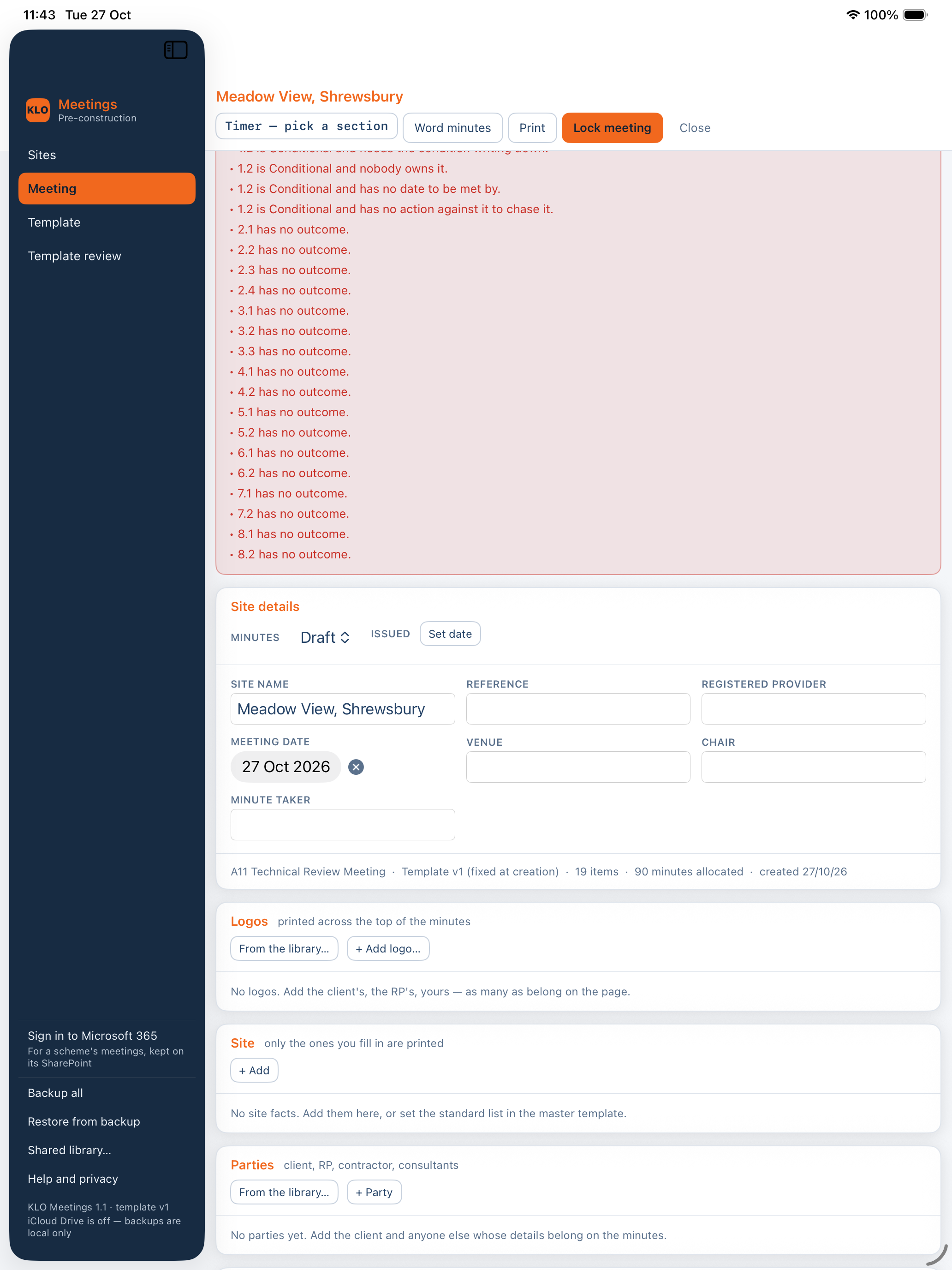
What's checked:
- the site's name, reference and meeting date;
- every item has an outcome; Conditional and Return items have notes;
- every Conditional item has its condition, an owner, a date and an action;
- every open action has an owner and a due date;
- the decision, if the meeting has one.
When nothing is missing, the app asks Lock this meeting? and locks it. The meeting becomes read-only, and items proposed for the agenda go to Template review.
Who can lock: for your company's project meetings (section 6), only the meeting's chair or one of the company's administrators can lock, unlock and issue the minutes. Name the chair in Site details, and add them to the attendees with their email. For a scheme's meeting and a meeting kept on one device, anyone who can open it can.
The minutes
On the Meeting screen:
- Word minutes saves the minutes as a Word document;
- Print › Print… prints them, and Save as PDF… saves them as a PDF;
- Print › Risk register (CSV)… and Plot schedule (CSV)… save those lists for a spreadsheet.
At the top of Site details, set Minutes (Draft, and so on) and the date they were Issued.
Unlock it
Choose Unlock and say why. The reason is printed on the minutes, with who unlocked it and when. Lock it again when you're done.
5. Agendas
The Template screen shows one agenda at a time. Choose which at the top.
- Change an agenda: edit its sections and items, the lead for each, their times, the pre-read pack, the site facts and the roles. Choose Save changes, or Discard. Each save is a new version, with a line in its Change log.
- New template starts a new agenda; Duplicate copies the one showing.
- Delete removes an agenda. It's refused while a meeting uses it, and, if your company uses KLO Pre-Con, for an agenda one of its procedure steps needs.
- Reset to starter puts the agenda back as the app first had it.
- Blank agenda (Word) saves the agenda with empty columns, to print and write on.
- Export JSON and Import JSON move an agenda between devices.
- Put our agendas on SharePoint (your company's administrators): puts the agendas made with New template or Duplicate in your company's folder on SharePoint, for its other devices and the web page. Agendas made or changed there come to this device when it reads them. One deleted here comes off for everyone at the next put; one deleted elsewhere goes from this device too, unless a meeting here was made from it. If one was changed both here and elsewhere, nothing is put, and the app says which and what to do.
A new company starts on a set of starter agendas, to use as they are or to make your own.
Template review
Items proposed in a meeting wait here after it's locked. For each, choose:
- Approve, and pick the section it goes in;
- Merge…, to change the wording of an item already on the agenda instead;
- Reject.
Then choose Apply to make the approved changes, together, as one new version of the agenda.
6. Your company's projects, on SharePoint
Your company's projects and their meetings are kept on your company's SharePoint, so everyone in the company opens the same record. It needs Microsoft 365, and changing project meetings needs a KLO account subscription (see Your KLO account below). KLO Pre-Con isn't needed.
Set up your company, once
- Choose Projects in the sidebar, and sign in with your company's Microsoft 365 work account. If it says an administrator must approve it, see Approval by IT below.
- Choose Set up our company…. Find your company's SharePoint site by its name or address, pick the document library, then open the folder to keep your company's KLO record in (or make one with Make and use it) and choose Use “…” with its name. Type the company's name and choose Set up. That makes you its first administrator.
- Everyone else chooses Find our company folder… and picks the same folder. If your company already uses KLO Pre-Con, find its folder: it's the same record.
Projects and their meetings
- Add a project… picks the project's folder on SharePoint, then asks for its name and, if you like, a short code, such as "PHN", which goes on its meetings' reference. Its meetings are kept in that folder, under "00 REGISTER", and their minutes under "09 MEETING MINUTES". Everyone in the company sees the same list.
- New meeting… in a project makes a meeting there. Give it a name, the day, whether it's held Once, Weekly or Monthly, and its agenda, then choose Make the meeting.
- For a weekly or monthly meeting, Next meeting makes the next sitting.
- Open opens a meeting. From then on it's on the Sites screen too.
- When it's locked, the minutes are saved in the project's folder, under "09 MEETING MINUTES", as a PDF and a Word document, as revision P01. Unlocking and locking again saves P02 beside them, and so on.
Your KLO account
Meetings kept only on your device are free. To change a project's meetings, the ones on SharePoint (your company's own projects and a scheme's meetings from KLO Pre-Con), you need a KLO account with a subscription. One subscription is for one person, under their email address, and works on Mac, iPhone, iPad and the web page.
- In the app: choose Settings, then under KLO account type your email, choose Send code, type the 6-digit code from the email and choose Sign in.
- On the web page: choose KLO account at the top right, then the same steps.
- Check again asks KLO's account server again, for example just after subscribing. The app needs to check at least once every 7 days.
- Sign out and Delete KLO account… are there too. Deleting the account also cancels a subscription bought on the web. Your meetings are not touched.
Without a subscription, project meetings can still be opened, read, printed and exported, but can't be changed, locked or filed, and no new ones can be made. Nothing is deleted. The company card on the Projects screen says whether project meetings can be changed on that device, and who the company's administrators are.
Approval by IT
Microsoft may stop people signing in until your company's IT approves KLO Meetings, once, for everyone. On the Projects screen, Send the link to IT… or Copy link for IT gives them the link and a guide. An administrator can choose I'm an admin: approve for everyone instead. If your company also uses KLO Pre-Con, IT approves that separately.
7. A scheme's meeting, from KLO Pre-Con
A scheme's meeting is kept on the scheme's SharePoint, so everyone in the meeting sees the same record.
- In KLO Pre-Con, open the meeting and choose Open in KLO Meetings.
- The first time, sign in with your company's Microsoft account. If it says an administrator must approve it, see Approval by IT in section 6.
- The meeting opens with the scheme's details and people from KLO Pre-Con, and the agenda for that step. From then on it's on the Sites screen too.
- Refresh reads the record again, to see what others have changed.
- Lock meeting for a scheme's meeting asks to Lock and file: the minutes are filed as a PDF in the scheme's Document Control project, under 09 MEETING MINUTES, and KLO Pre-Con records that they're issued. KLO Pre-Con sends them to everyone invited.
- Unlock and lock again files the new minutes as the next revision. The earlier minutes stay filed.
The sidebar's Microsoft 365 row shows who is signed in, with Sign out. After signing out, a scheme's meetings stay on the device and keep saving there, but nothing goes up to SharePoint until someone signs in again.
8. Backups
- On a Mac, iPhone or iPad, the app backs up every meeting and agenda to iCloud on its own, encrypted, with a folder for each device. Only your own devices can open them, and they count towards your iCloud storage. Restore from iCloud in the sidebar lists them, including another device's, such as an old phone's when you move to a new one.
- On any device, Backup all in the sidebar saves everything as one file, wherever you choose. That file isn't encrypted, so keep it somewhere safe. The app reminds you after seven days without a backup.
- Restore from backup (on iPhone and iPad: Restore from a file) puts a backup back. If it says Can't open this backup, the backup is encrypted and this device doesn't have its key: open it on the device that made it, or turn on iCloud Keychain with the same Apple Account here.
9. Your meetings on the Sites screen
Every meeting on the device is listed, the latest meeting date first. Type in the box to find one by site, meeting or reference. For each one:
- Open it;
- Minutes saves its Word minutes;
- Duplicate copies it as a new meeting;
- Re-run makes the next sitting of a meeting whose decision was Return;
- JSON saves it as a file, to open on another device with Import site (JSON);
- Delete removes it, after asking you to confirm. A meeting kept on SharePoint stays there: only this device's copy goes.
10. The web page, for Windows users
People without an iPhone, iPad or Mac use the web page, at apps.klodevelopmentservices.co.uk/meetings/.
- Your company's projects: open the page and sign in with your company's Microsoft account. It has the same Projects screen as the app: set up or find your company folder, add projects, and make and open their meetings. Approval by IT is on its first screen.
- Your company's agendas: Our agendas… on the Projects screen. Your company's administrators make new ones there, blank or from a built-in agenda, and change, duplicate and delete them, as on the app's Template screen. They're the same agendas the app's Put our agendas on SharePoint shares, and New meeting… offers them.
- A scheme's meeting: open the link in KLO Pre-Con's email.
- The meeting has the same agenda, outcomes, conditions and actions as the app, and the same lock rules. Locking it saves or files the minutes, as in the app.
- Changes are kept in the browser as you type, signed in or not, and go up to SharePoint when you're signed in. The page won't sign you out while a change is unsent. If your sign-in runs out, it says so: sign in again and the changes go up.
The page doesn't keep meetings of its own: every meeting on it is on your company's SharePoint.
11. Getting help
- Support and common questions: www.klodevelopmentservices.co.uk/klo-meetings-support
- Email [email protected], with which device you use, what you were doing and what the app said.
- Privacy statement: www.klodevelopmentservices.co.uk/klo-meetings-privacy
- Terms of use: www.klodevelopmentservices.co.uk/klo-meetings-terms