
Help guide
KLO Pre-Con runs your company's pre-construction procedure as live work.
- Every step has a role that owns it. The person in that role signs it off.
- Each sign-off emails the people it affects, from the signer's own mailbox.
- Hold points stop the work until they're released, with their evidence.
- Meetings send Outlook invitations, and people answer them in Outlook or in the app.
- It works on iPhone, iPad and Mac, and on the web in any browser, for Windows users and guests (section 12).
A new company starts on the app's Example Homes procedure, a made-up one to make your own. This guide's examples come from it.
Contents
- Words used in this guide
- Try it first, on a practice record
- Set it up for your company (the administrator, about 15 minutes once IT has approved it)
- Open a lead
- Your day: My work and signing off
- Hold points
- Meetings
- Trackers
- When a lead becomes a project, or is closed
- When someone is away
- Change the procedure (administrators, on a Mac or iPad)
- KLO Pre-Con on the web, for Windows users and guests
- Getting help
1. Words used in this guide
- Scheme: a lead or a project. Each one runs the procedure from week 1.
- Lead: a tender or a land lead. It becomes a project at its route's award step.
- Route: which part of the procedure a scheme runs. The procedure has two: Tender and Land build.
- Step: one line of the procedure, such as A1. It has a target week, a role that leads it, and the role that signs it off.
- Hold point: a step that stops every step after it until it's released, such as HP1 at A2.
- Role: a job in the procedure, such as Estimator. The company's record says who can hold each role. Each scheme says who does.
- Tracker: a list the procedure keeps, such as the Tender query log.
- The record: everything above, kept in your company's own SharePoint. A practice record is kept on one device instead.
2. Try it first, on a practice record
A practice record lives on one device. Nobody is emailed from it, and you say who you are, so one person can try every role. It's free, with no trial and no licence.
Start the practice record
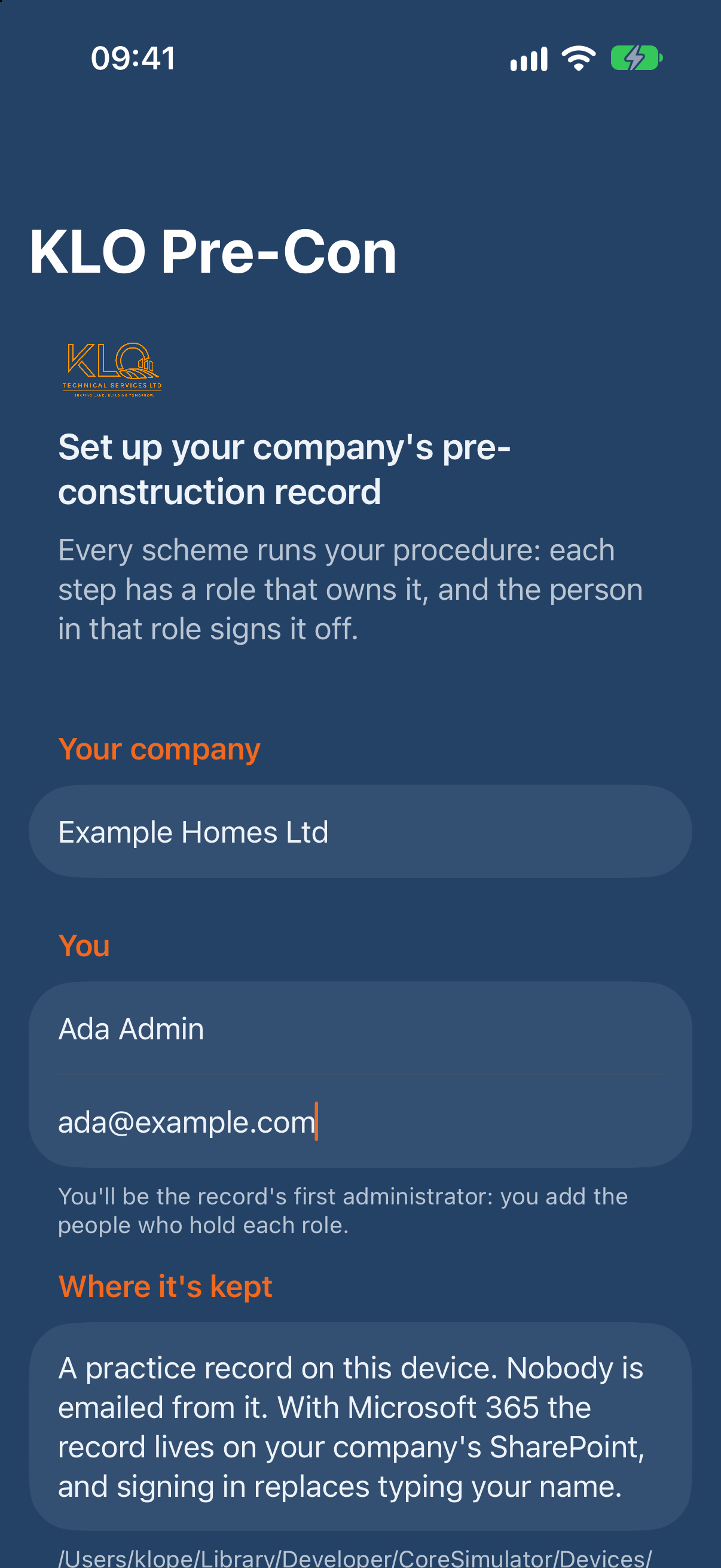
- Open KLO Pre-Con. The first screen asks "Where is your company's record?"
- Under Or practise first, choose Use a practice record on this device.
- Under Your company, type a Company name.
- Under You, type Your name and Your email. You become the record's first administrator.
- Choose Set up.
The app opens on three tabs: Schemes, My work and Company. Setting up also files the Example Homes procedure: it's on the Company tab under Procedures, with its number of steps and who filed it. If it isn't there, an administrator chooses File the Example Homes procedure under Procedures.
Add people to the roles
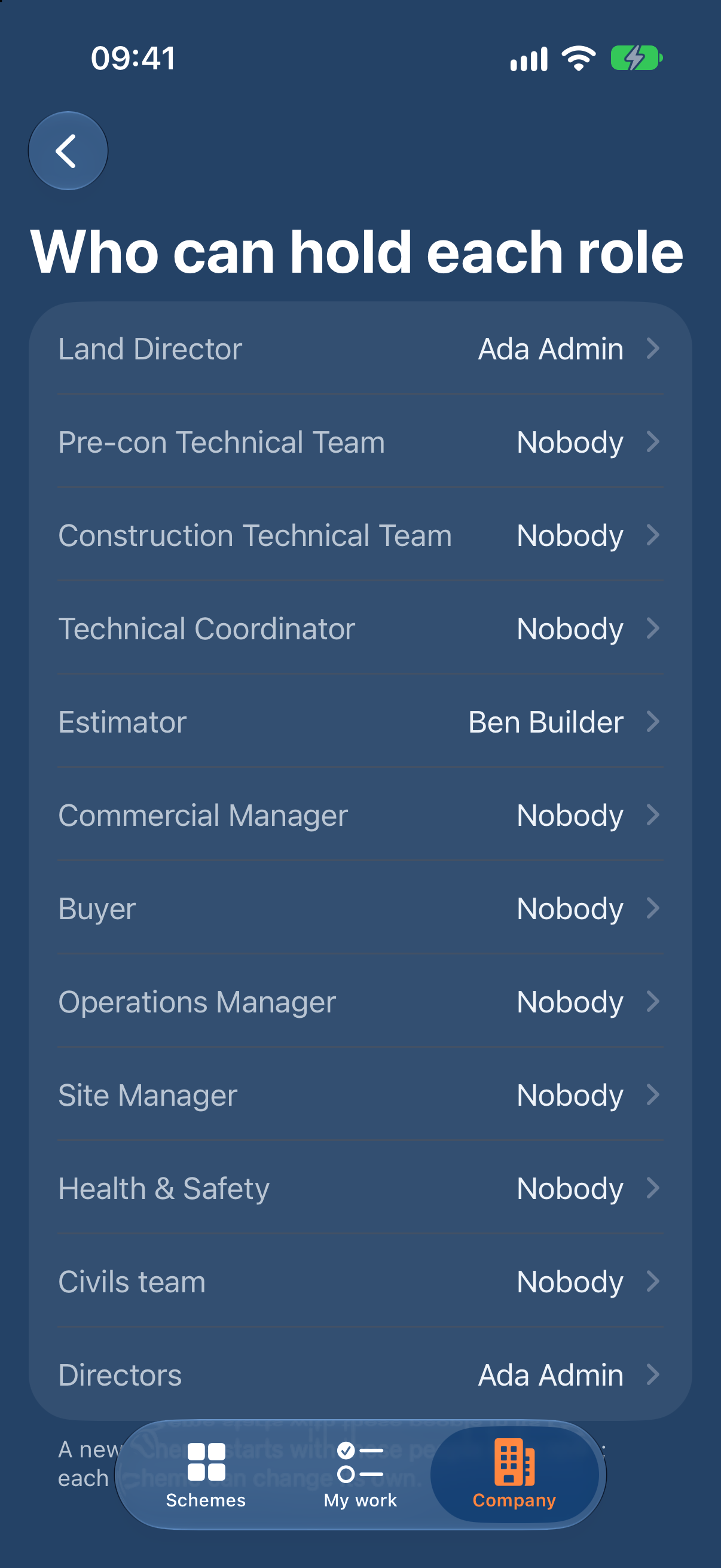
Each role in the procedure needs someone who can hold it. In a practice record you can make up people to try each role.
- On the Company tab, under Roles, choose Who can hold each role.
- Choose a role, such as Estimator.
- Choose Add someone….
- Choose someone the record already knows, under Choose someone. Or type a Name and Email under Or someone new.
- Choose Add.
Do the same for each role you want to try. One person can hold several roles.
Be someone else
In a practice record you can switch to anyone the record knows, to see their part.
- Open Settings (on a Mac, Settings at the top right of the window, or ⌘,; on an iPhone or iPad, the Settings tab). Under You, choose Switch to someone else….
- Choose the person.
- Choose Switch.
The app reads everything again as them. My work now shows their steps.
Start again
In Settings, under Practice record, choose Start again…, then Delete it and start again. Every scheme, sign-off and setting in the practice record goes. This can't be undone.
3. Set it up for your company (the administrator, about 15 minutes once IT has approved it)
The company's record lives in a folder on your company's SharePoint. Everyone who signs in and points their app at that folder shares it.
Before you start
- You need a work Microsoft 365 account. A personal Microsoft account can't reach SharePoint.
- Your company's IT administrator agrees to KLO Pre-Con once, for everyone. KLO Pre-Con reads and writes the record on SharePoint, so Microsoft asks an administrator first. If the app says your IT needs to approve it, go to Approval by IT on the first screen and choose Send the link to IT… or Copy link for IT: IT gets the approval link and a one-page guide to what the app asks for. If you're an administrator yourself, choose I'm an admin: approve for everyone. It's on the Company tab too, with IT has approved it for after IT has done it.
- Choose a SharePoint site for the record. It can be an existing one, such as your Pre-Con team's site. Everyone who uses KLO Pre-Con needs access to it.
Sign in and choose the folder
-
Open KLO Pre-Con. The first screen asks "Where is your company's record?"
-
Under Microsoft 365, choose Sign in to Microsoft 365. Sign in with your work account.
-
Microsoft asks you to allow KLO Pre-Construction (KLO Pre-Con's name in Microsoft 365):
- to read and write files on your company's SharePoint (for the record);
- to send email as you (for the sign-off emails);
- to read and write your calendar (for meeting invitations).
Microsoft asks for them together: choose Accept. If your IT administrator has already agreed for everyone, you aren't asked. If your company doesn't allow sending email or calendars, the app still works, and tells you each time an email or an invitation couldn't go.
-
Under Your company's SharePoint site, type the site's name, or its address from the browser, then choose Find.
-
Choose the site in the list.
-
Under Its folder, choose the Library. Leave the Folder as KLO Pre-Con, or type another name.
-
Choose Use this folder. If the folder is there with your company's record in it, the app opens it. If it isn't there, the app asks first: choose Make “KLO Pre-Con” to start the record. If another folder in the library already holds a company's record, the app names it: choose Open it, so a mistyped name doesn't start a second record with a trial of its own.
Set up the company
- Under Your company, type the Company name.
- Under You, the app shows who's signed in. You become the record's first administrator.
- Choose Set up.
Setting up files the procedure too (it's under Procedures on the Company tab). Then, on the Company tab:
- Say who can hold each role: under Roles, choose Who can hold each role. For each role, choose Add someone…, type their Name and work Email, and choose Add.
- Name deputies (optional): under Roles, choose Deputies. Pick each person's deputy. Arranging cover offers the named deputy first.
- Add other administrators (optional): under Administrators, choose Add an administrator…. Administrators set who can hold each role, the deputies and the procedures.
Add your company's logo
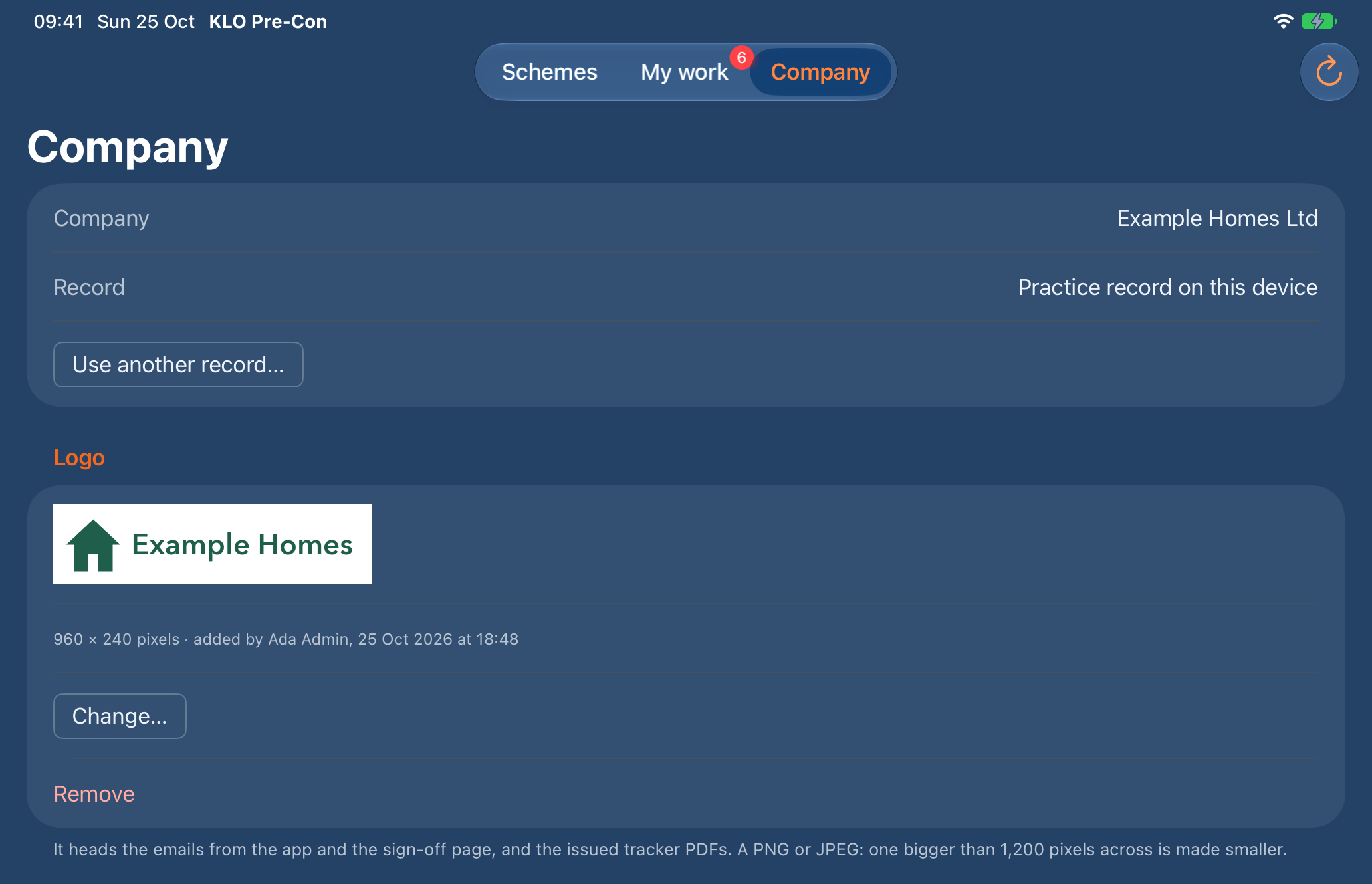
Your company's logo goes at the top right of the first page of every tracker you issue, and at the top of every email the app and the sign-off page send. The app itself keeps its own look. An administrator adds the logo on a Mac or an iPad. An administrator on an iPhone sees "Change it on a Mac or an iPad.", and anyone else sees "Only the administrators change the logo."
- On the Company tab, under Logo, choose Add a logo….
- Choose a PNG or JPEG of the logo. One bigger than 1,200 pixels across is made smaller.
The logo shows under Logo, with its size in pixels and who added it, and when. To use another, choose Change…. To stop using one, choose Remove: trackers issued after that have no logo. A wide logo works best. On the PDF it's drawn at most 40 points high and 200 wide, keeping its shape. In an email it's 48 high, or 240 across if it's very wide. The email carries a small copy, with any plain border round the logo trimmed off, so it shows at its own shape.
The trial and your licence
A live record has a 30-day trial, counted from the day the company was set up. A practice record is always free and needs no licence. The days are counted in UK time, so every device and the sign-off page agree on the day the trial or a licence ends.
KLO invoices your company once a year and sends the licence as a file. It's for your company's Microsoft 365 and the year it covers. An administrator adds it on a Mac or an iPad:
- Save the licence file KLO sent where the Mac or iPad can open it, such as in Files or Downloads.
- On the Company tab, under Licence, choose Add a licence….
- Choose the file.
The licence shows under Licence: its reference and the days it covers, then your company's name, how many people it's for, and who added it, and when. The top line says where the record stands, for example "Trial: 30 days left, to 23 Nov 2026. Then the record is read-only until a licence from KLO is added." or "Licensed to 30 Nov 2027: 351 days left.". An administrator on an iPhone sees "Add a licence on a Mac or an iPad.", and anyone else sees "Only the administrators add a licence.".
A file that isn't KLO's, was changed after KLO sent it, or is for another company's Microsoft 365 is refused, and the app says why, for example "That licence is for Other Homes Ltd's Microsoft 365, not this one.". Nothing is added.
Renewing. From 30 days before the licence ends, administrators see a notice at the top of the Schemes tab. When KLO sends the renewal, choose Add a renewal… under Licence. A renewal that starts no later than the day after the last one ends carries the record on with no gap, and the notice goes.
How many people. A licence is for a number of people, and the app keeps to it. Counted, each person once: the administrators, everyone added to a role on the Company tab, and everyone with a role on a scheme that's still open. Guests aren't counted: anyone whose address isn't at one of the administrators' domains, such as a consultant. If more people are counted than the licence is for, those added first are covered. Anyone added after them can still read everything, but can't make changes, in the app or on the sign-off page, and is told which administrators to ask. An administrator is never refused. Under Licence, the Company tab says how many people are in the company's roles and who isn't covered. To cover everyone, add a licence from KLO for more people, or take someone out of their roles. The trial and a practice record have no limit.
When the trial or the licence has ended, the record is read-only. Everyone can still read every scheme, its history and its files, and nothing is deleted. Nothing new can be written: no sign-off, meeting, tracker change, lead or procedure. Everyone sees a notice at the top of the Schemes tab. An administrator is told to add a licence on the Company tab, and everyone else is told which administrators to ask. Adding a licence is the one change still allowed. Every device and the sign-off page take it in the next time they read the record, or as soon as someone tries a change.

Everyone else
Each person does this once on each device:
- Open KLO Pre-Con and choose Sign in to Microsoft 365.
- Find the same site, choose the same library and folder, and choose Use this folder.
The app opens the company's record. A person with no role yet can read it, but can't open a lead until an administrator adds them on the Company tab.
People outside the company
Consultants and others outside your company take part as guests in your company's Microsoft 365. Your IT administrator invites them, and gives them access to the record's SharePoint site. They use the web page (section 12).
- An outside party role, such as Architect, is only emailed. The internal role responsible for its steps signs them off. In the Example Homes procedure every consultant role is an outside party. For a consultant to sign a step off, add them to the internal role that signs it.
- A guest needs the company's whole Pre-Con folder. The page opens the company's record first, and leads sit in that folder, with their deal terms, until they become projects. So a guest who can open the page can read every lead. Ask your IT administrator to decide that before inviting anyone.
4. Open a lead
Open a lead when an invitation to tender or a land lead comes in.
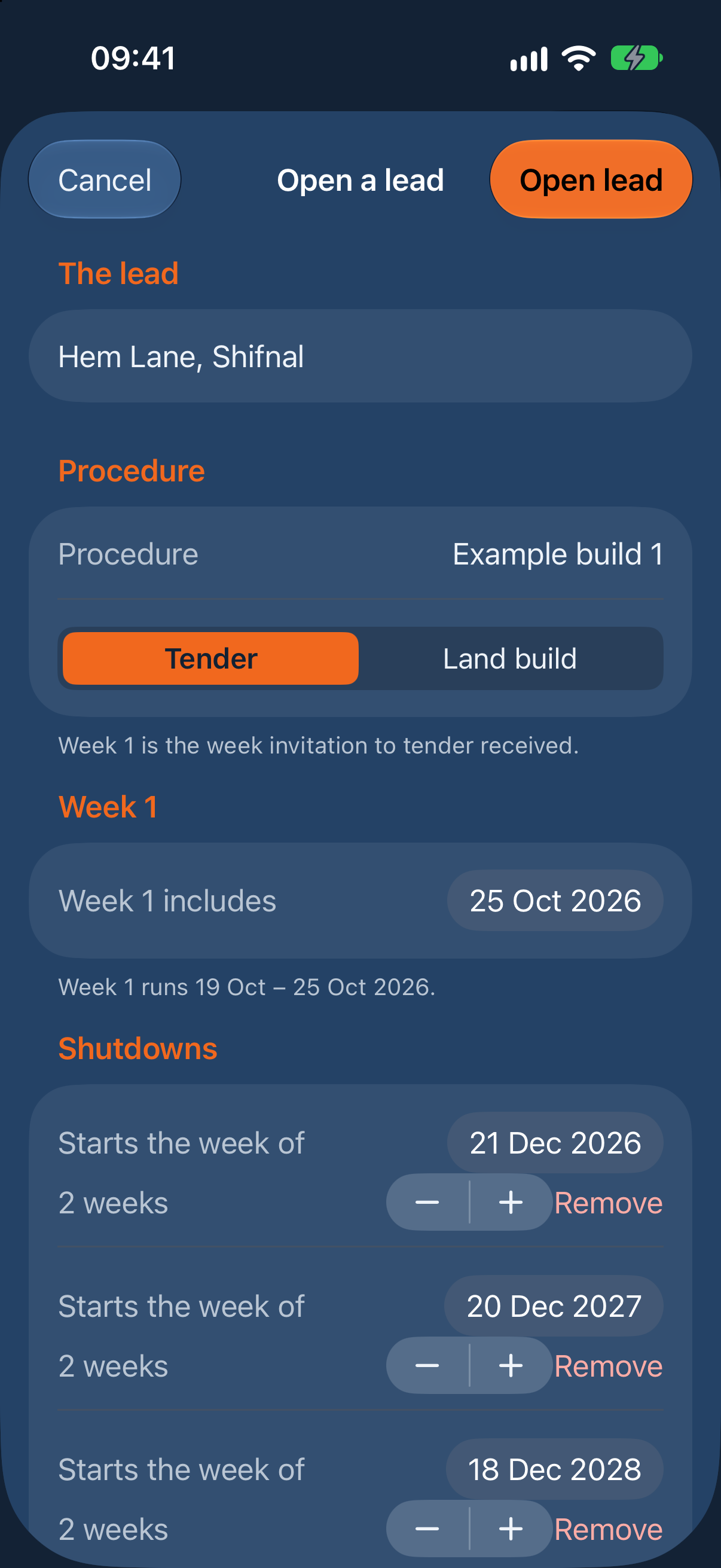
- On the Schemes tab, choose + (Open a lead).
- Under The lead, type the scheme's name, such as "Hem Lane, Shifnal".
- Under Procedure, choose the Route: Tender or Land build.
- Under Week 1, set Week 1 includes to a day in the week the invitation to tender or the land lead came in. Every target counts from that week.
- Under Shutdowns, check the weeks the procedure doesn't count. Christmas is filled in for you. Choose Add a shutdown for any other.
- Under People, turn off anyone not on this scheme. The list comes from the company's roles.
- Choose Open lead.
The scheme's page opens. It shows:
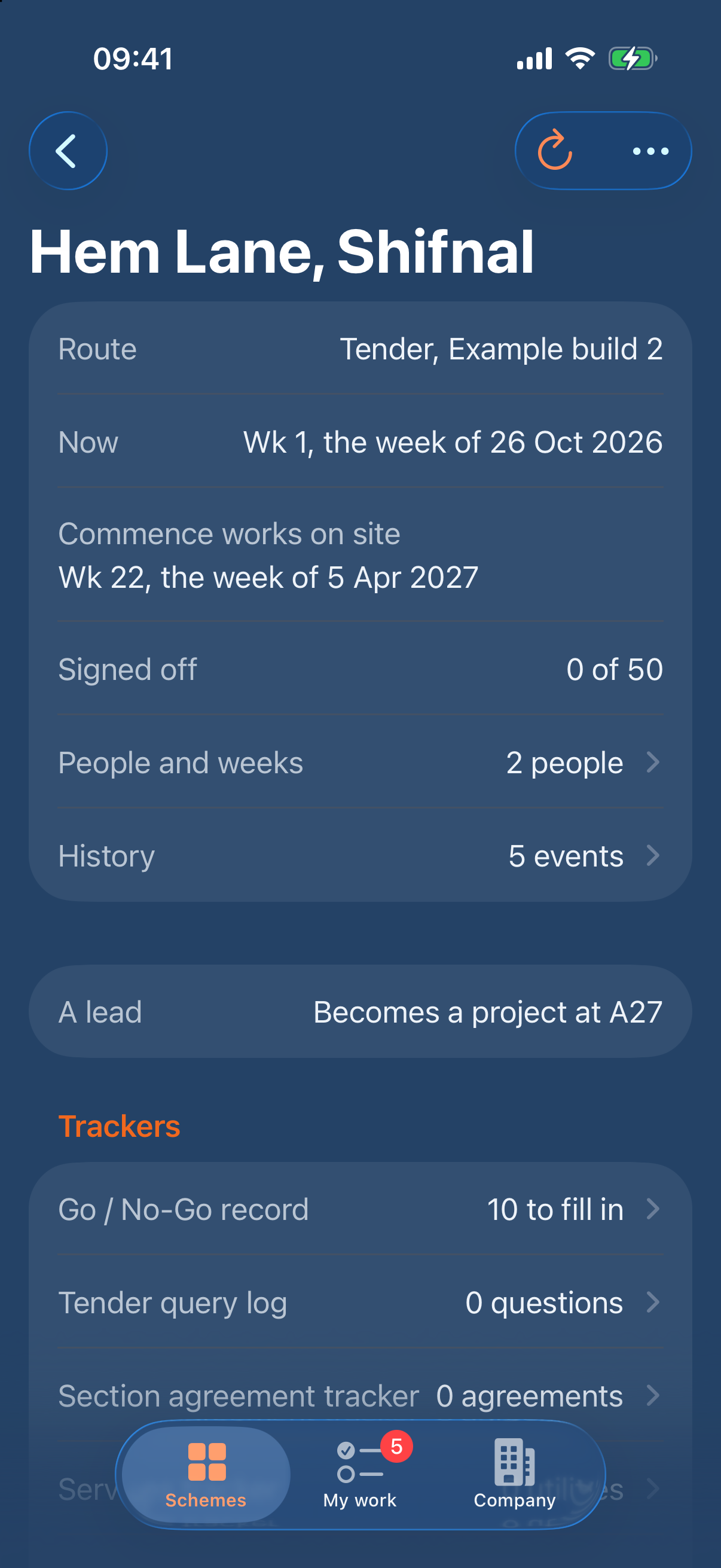
- Route, Now (this week's number) and Signed off (how many of its steps);
- People and weeks: who holds each role on this scheme, its shutdowns, and its practical completion date;
- History: every event, latest first;
- the scheme's Trackers;
- its steps, stage by stage. Choose To do, Mine or All above them.
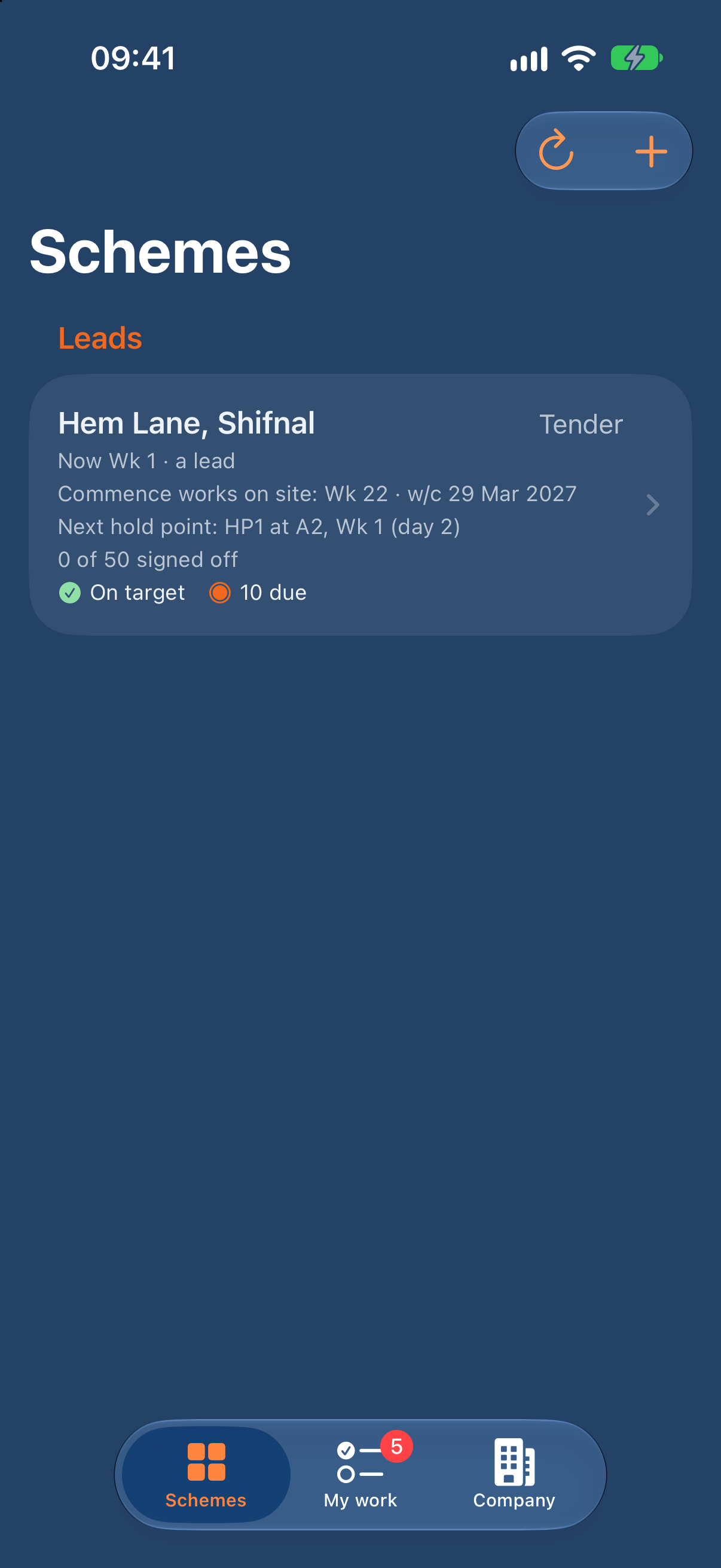
The Schemes tab shows every scheme against its target week: On target, or how many steps are late, slipped or due.
Change who holds a role on one scheme
Only the company's administrators (Company tab, Administrators) change who holds a role on a scheme. The person opening a lead gives its roles as they open it. Anyone else sees who holds each role, with "Only the company's administrators change who holds a role."
- On the scheme's page, choose People and weeks.
- Choose the role.
- Choose Add someone…, or Remove beside a name.
Move a step's weeks
- On the step's page, under When, choose Change its weeks….
- Set From week and To week.
- Under Why, say why. It's kept in the scheme's history.
- Choose Save.
5. Your day: My work and signing off
My work
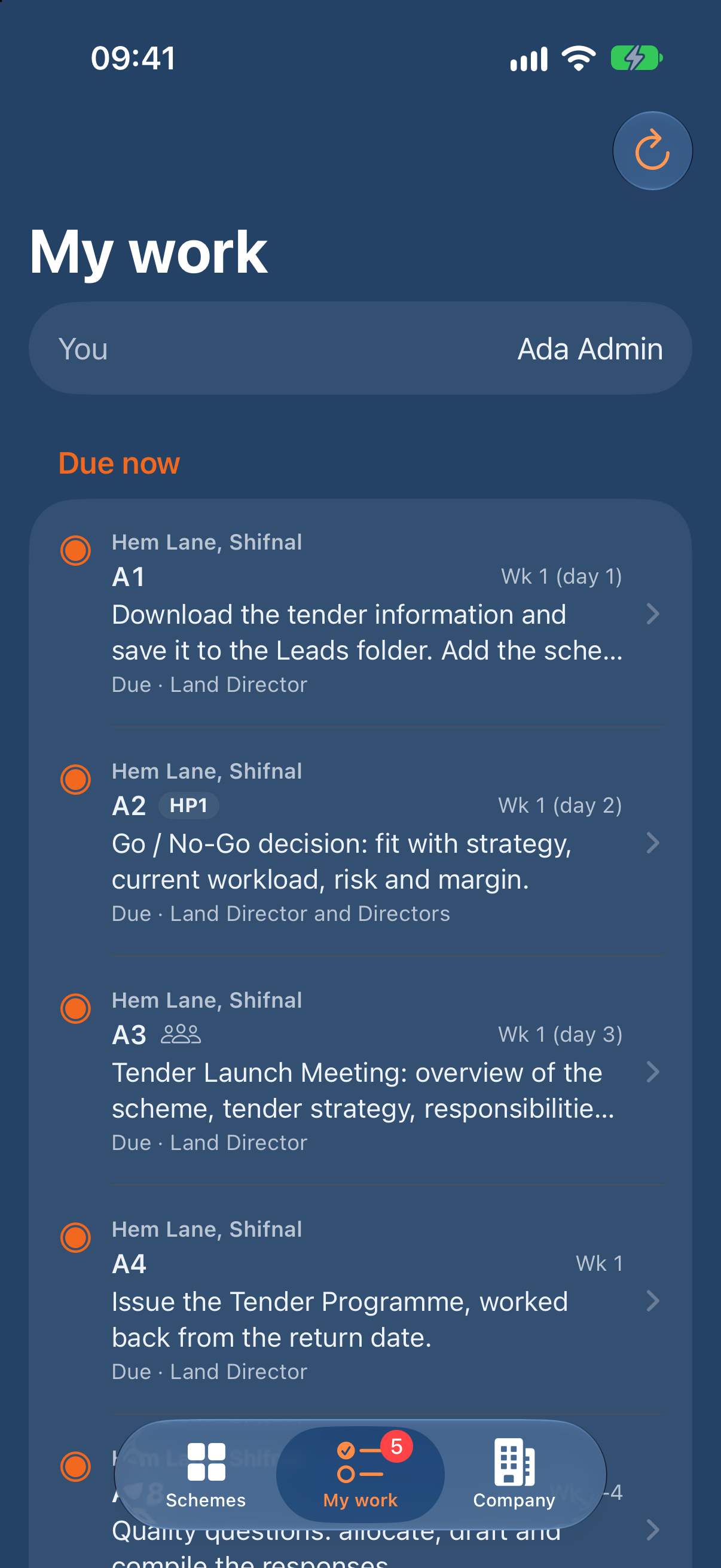
The My work tab lists every step you sign off, on every live scheme:
- Late;
- Late or flagged in a tracker: on trackers you keep, and requests waiting for your approval;
- Due now;
- Held up by a hold point;
- Coming up in the next two weeks.
The tab's badge counts what's late or due. When you're covering for someone, their steps are here too, marked "As deputy for" them.
What a step says
Each step shows how it stands:
- Not due yet, Due, Late (or "2 weeks late"), and slipped once it's more than two weeks late. A late step emails whoever signs it off the day it goes late, then each Monday while it stays late. Once it has slipped, the Land Director is emailed too.
- Waiting for HP1: a hold point before it isn't released yet.
- Signed off, or Not applicable.
- Kept with the project's documents: construction's daily work isn't signed off here.
- Recurring: it runs on its rhythm through construction, held in KLO Meetings.
- Needs the PC date: set the practical completion date first.
Sign off a step
- Open the step, from My work or the scheme's page.
- Choose Sign off A1… (the button names the step).
- Under Note, say what was done, or anything to know (optional).
- Under Evidence, add a link to the document on SharePoint, or its document number (optional for a step; a hold point needs it). Choose Add another for more.
- Check Who'll be told: the people the sign-off emails.
- Choose Sign off.
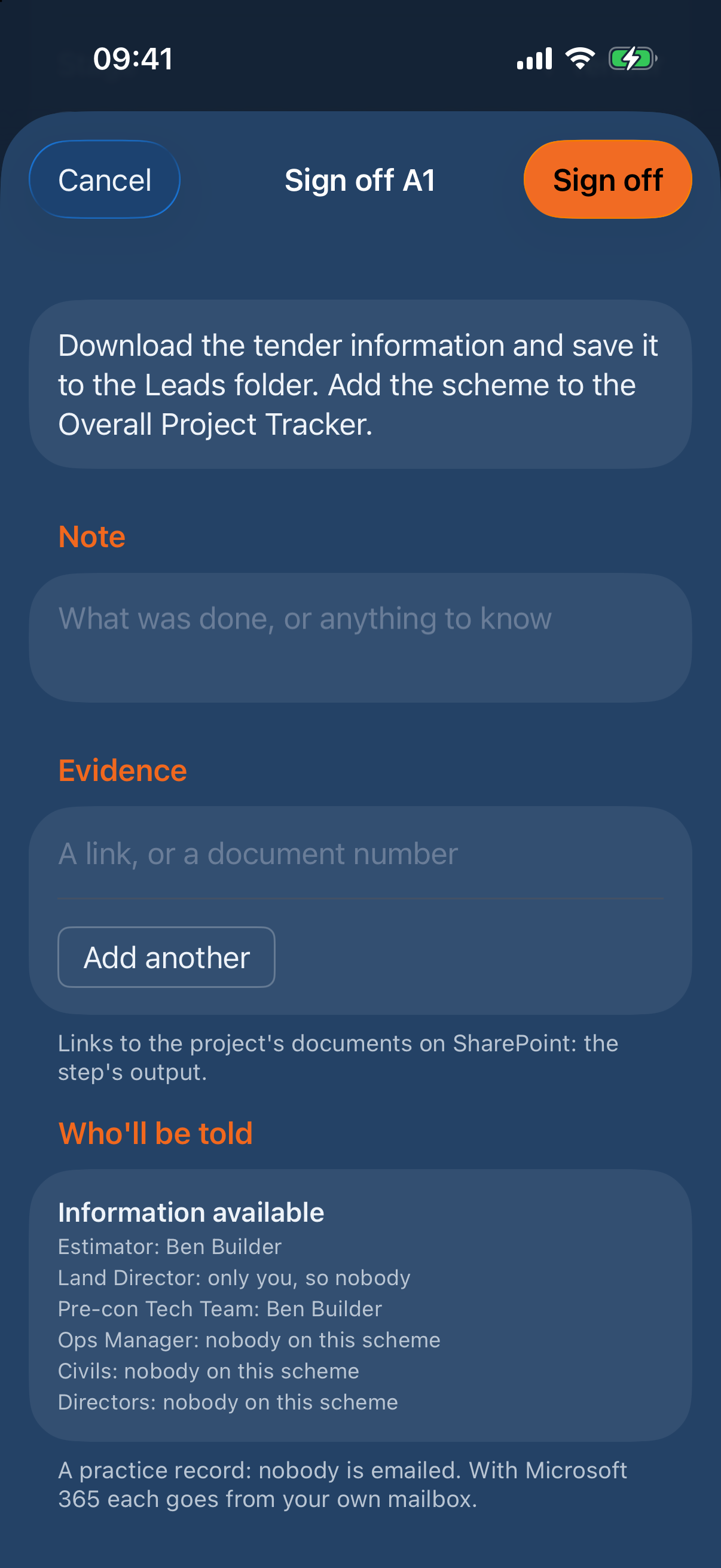
If an email couldn't go, the sheet says so and offers Send again.
If you can't sign it off, the step says why: for example "Only Estimator can sign this off on this scheme", or "It can't be signed off until HP1 is released".
A step that doesn't apply
- On the step's page, choose Not applicable to this scheme….
- Say why it doesn't apply.
- Choose Set aside.
It's no longer due or late. Choose Re-open… on the step if that changes.
Re-open a step
- On the step's page, choose Re-open….
- Say why it's being re-opened.
- Choose Re-open.
Your reason is emailed to the step's leads, the people who feed it, the next steps' leads and the Land Director; the sheet names them before you choose Re-open.
What was recorded stays in the history.
See other people's changes
The app reads the record again when you come back to it. To read it now:
- iPhone and iPad: tap Refresh at the top right, or pull the screen down.
- Mac: choose View › Refresh (⌘R).
On site with no signal
With no signal, the app shows the record as this device last read it, and a banner says when, such as "Offline: showing the record as last read at 10:42. Sign-offs wait until you're back online." Nothing can be signed off or changed until you're back online, when the app reads the record again by itself. A practice record is kept on the device, so it works as usual.
6. Hold points
A hold point holds back every step after it until it's released. The procedure has 17, HP1 to HP17. On a step's page, the Hold point card says who releases it and the evidence it needs.
- Open the hold point's step, such as A2 (HP1).
- Choose Release HP1….
- Under Evidence (needed), add the evidence the hold point asks for. A hold point released on a tracker (below) says plain Evidence: the tracker is its evidence, so add a link only if there's more.
- Choose Release.
Some hold points are released on a tracker. HP1 is released on the Go / No-Go record, HP11 on the Validation checklist and HP16 on the Pre-start checklist. Their step says "Open the Go / No-Go record" (or the tracker's name). Fill the tracker in first: its page lists what's Still needed for HP1, and the step's Release HP1… works once it's complete. The Go / No-Go record needs every field marked "(needed)" and at least one risk (Add a risk…); Current workload is filled with Take it from the workload chart. If the Go / No-Go record says No-Go, close the lead instead (section 9).
7. Meetings
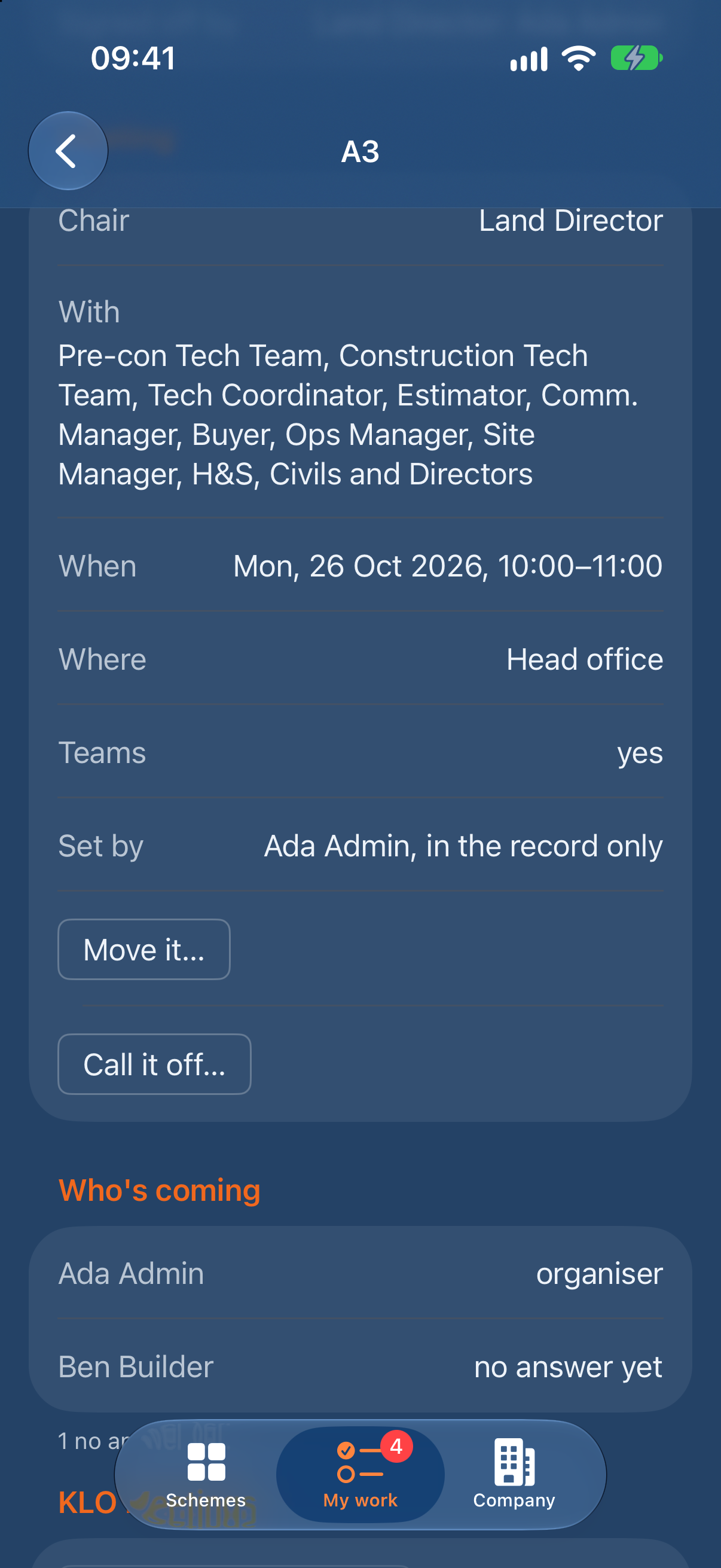
A meeting step, such as A3 Tender Launch, has a Meeting card. Its chair is the step's lead.
Set a meeting
- On the meeting step's page, choose Set the meeting….
- Under When, set Starts and how long it Lasts.
- Under Where, type the place. Leave Teams meeting on for a Teams link, or turn it off for a meeting in a room.
- Under Minutes, choose who they're Taken by.
- Check who's Invited.
- Choose Send invitations. In a practice record the button says Set, and nobody is told.
The invitation goes from your own Outlook calendar.
Answer an invitation
Answer in Outlook as usual, or on the meeting step's page under Who's coming: choose I'm coming, Maybe or Not coming. Answers in Outlook come back to the organiser's app. An answer given in the app doesn't change your calendar.
Move or call off a meeting
On the meeting step's page, choose Move it… or Call it off…. Only whoever sent the invitation can move or cancel it, because it lives in their calendar.
- Move it… opens the meeting as it's set. Change what's needed and choose Send the update. In a practice record the button says Set.
- Call it off… asks why it's called off. Choose Call it off. Everyone invited gets Outlook's cancellation, with your reason as its note. The step then shows Cancelled and the reason, and Set the meeting… sets it again.
Minutes
Minutes are written and issued in KLO Meetings, and filed with the project's documents. A meeting whose minutes are kept elsewhere, such as E11's in the document system, says so on its Meeting card, and Pre-Con sends its invitation only.
The company's own meetings
Some meetings cover every live scheme at once, such as E15, the operations meeting. They're set once, on the Company tab under Meetings, not on each scheme.
8. Trackers
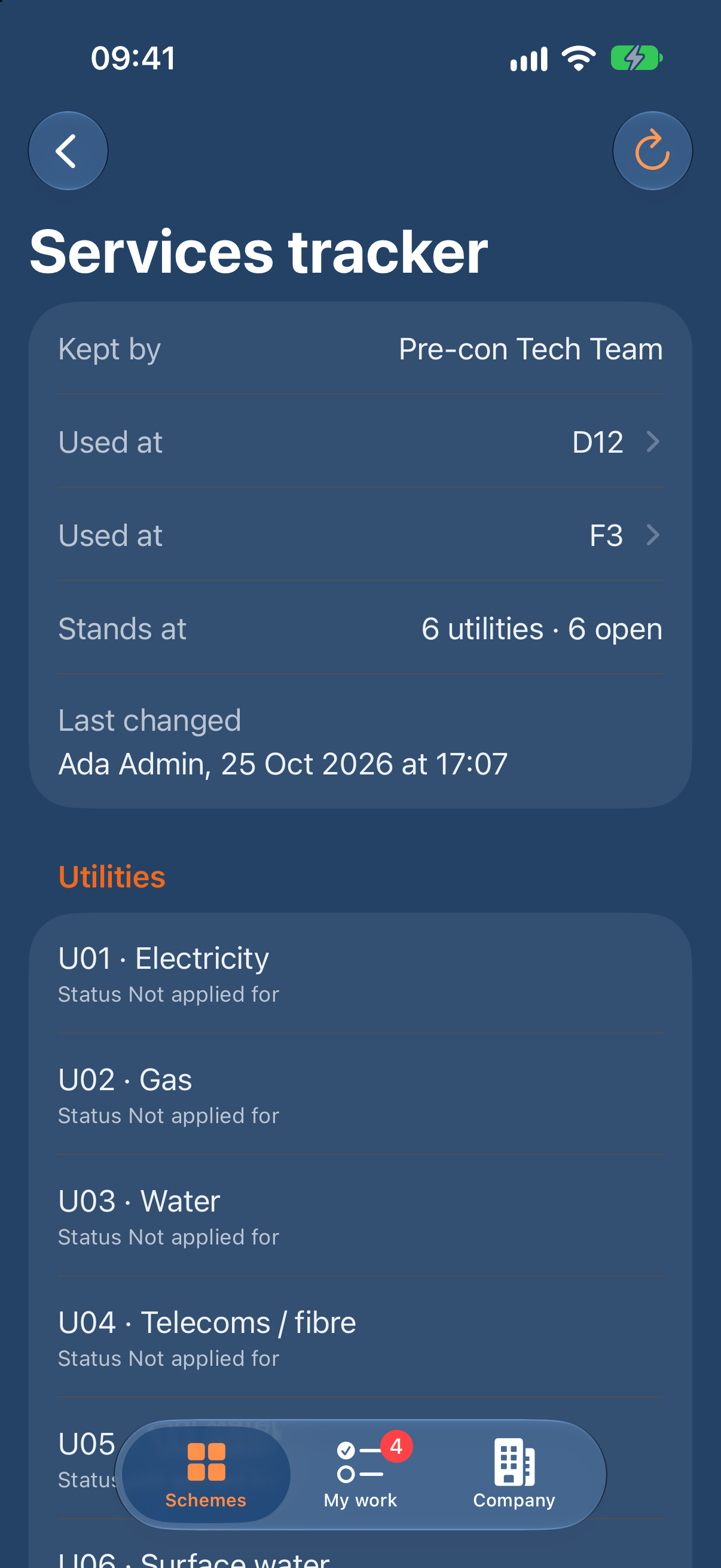
A tracker is a list the procedure keeps, such as the Tender query log or the Design change requests. A scheme's trackers are on its page under Trackers, and on the steps that use them.
Fill in a tracker
- Open the tracker.
- For a tracker with its own fields, such as the Go / No-Go record, choose Fill in… (or Change…), fill it in and choose Save.
- For a list, choose its add button, which names the row: Add a question… on the Tender query log. Fill it in and choose Add. To change a row, choose it, change it and choose Save.
- Some lists come with the procedure's own rows, such as the six usual utilities on the Services tracker: choose Start with the standard list (6).
A row past its deadline shows Late, and appears in its keeper's My work. To take a row out, open it and choose Take this … out… at the bottom (Take this request out… on the Design change requests). Say why if you like, then choose Take it out. It stays in the history, and on the tracker's page under Taken out, with the reason.
Approvals
Some rows need approvals from given roles. In the Design change requests, for example, the Commercial Manager agrees the cost, the Operations Manager agrees the programme, and the Construction Technical Team approves. Only those roles can give them. To give one, open the row, turn on the approval your role gives, and choose Save. Approved can only be turned on once Cost agreed and Programme agreed are. The row then lists who gave each one, and when. A change to the cost or the programme clears the approvals that depend on it. A change dated Issued for use before its approval is flagged "Issued before approval".
Issue a tracker
Some trackers are issued, such as the Consultee response tracker. They're issued once the lead is a project (section 9); until then, the tracker's Issued card says when it gets its project on SharePoint.
- On the tracker's page, under Issued, choose Issue… (or Issue again…).
- Check the Number, Revision and Status it's filed with on SharePoint, and who it's Emailed to.
- Choose Issue.
The PDF is filed in the scheme's project on SharePoint and emailed. Its first page carries the company's logo, if it has one (section 3). If the logo can't be read, the tracker is issued without it and the app says why. Choose an issue under Issued to open it.
Across every scheme
The Company tab shows:
- Workload: every live scheme's open steps and meetings, person by person, for the next 12 weeks, and who is over the limit. An administrator changes the limit.
- Trackers: the section agreements and the bonds outstanding, read from every live scheme.
9. When a lead becomes a project, or is closed
Make it a project
When a lead's award step is signed off (A27 on a tender, B8 on a land build), its page says it becomes a project.
- On the scheme's page, choose Make it a project.
- Under The project on SharePoint, type its Code (2 to 8 letters or numbers, such as HEM). Its Name is filled in from the lead; change it if you need to.
- Under Where it is, find the project's SharePoint site, and choose its Library and Folder. (Not in a practice record.)
- Choose Make project.
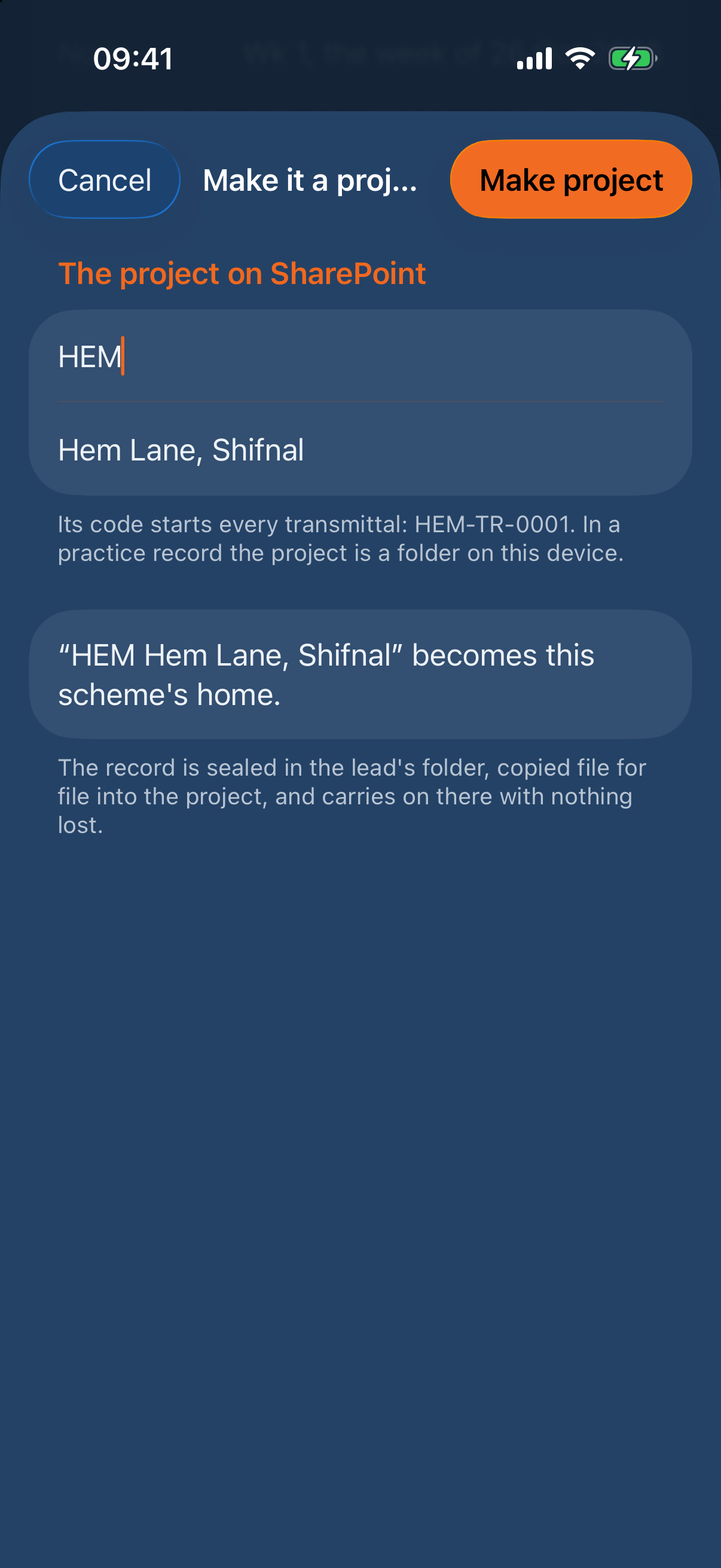
The scheme's record moves into the new project on SharePoint and carries on there, with nothing lost. If the move stops part way, the scheme's page says so: choose Finish the move. With KLO Document Control, the same project opens there too.
Close a lead
- On the scheme's page, choose Close this lead…. On an iPhone or iPad it's in the ••• menu at the top right.
- Say why it's closed, such as "Tender lost".
- Choose Close lead.
It stays in the record, under Closed leads, with its history.
10. When someone is away
A deputy covers a person between two dates, on every live scheme where the person holds a role. The deputy signs off what the person could, marked as their deputy, and gets their emails.
- On the Company tab, under Cover, choose Arrange cover….
- Under Who's away, choose the Person.
- Under Their deputy, choose the Deputy. If the person has a named deputy, they're chosen for you.
- Under When, set the First day and Last day.
- Choose Arrange.
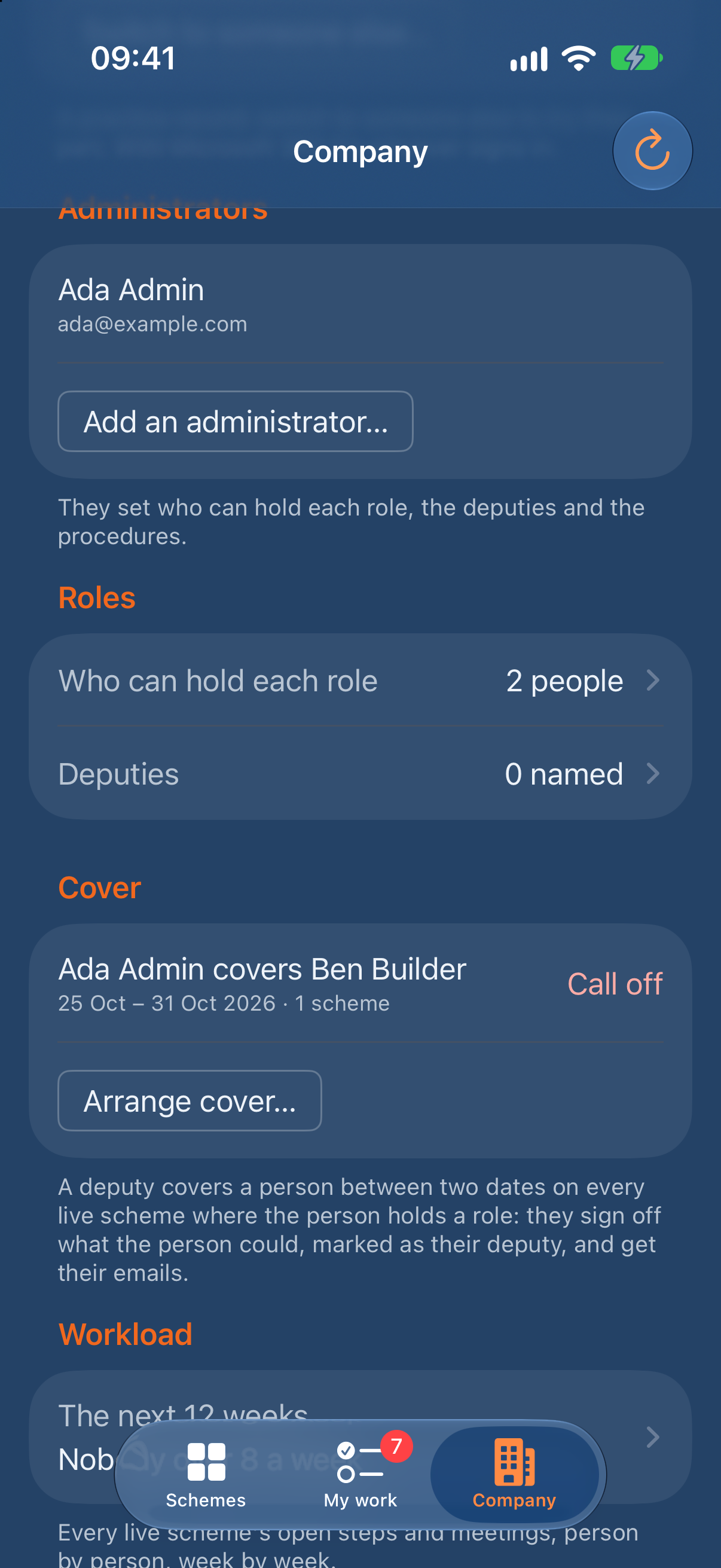
To end it early, choose Call off beside it.
11. Change the procedure (administrators, on a Mac or iPad)
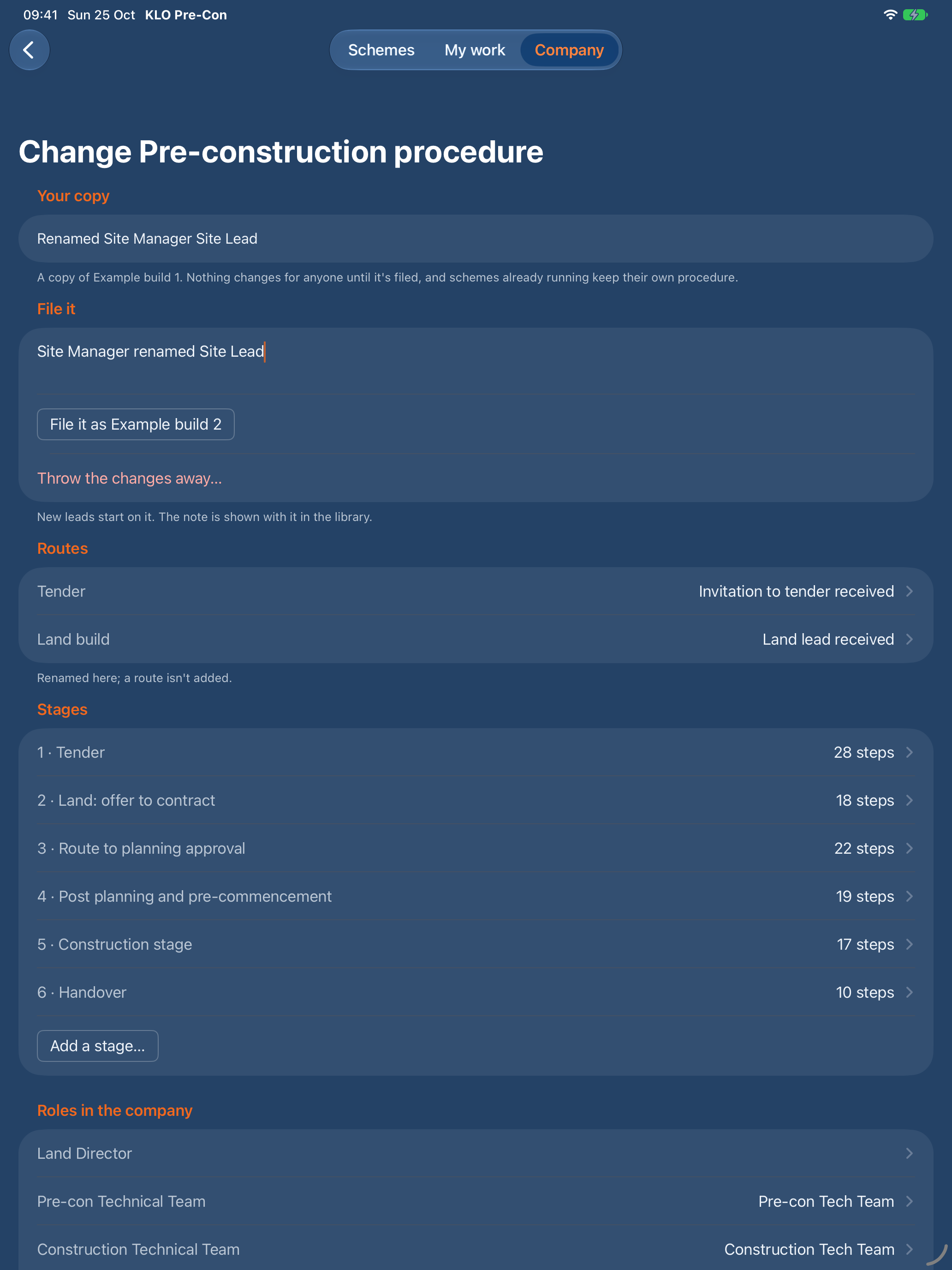
An administrator changes the company's procedure on a Mac or an iPad: rename a role, add a step, move its weeks, switch off a tracker you don't use. You change a copy, then file it as the next build. New leads start on the new build. Schemes already running keep the procedure they started on. On an iPhone, and for anyone who isn't an administrator, the procedure can be read but not changed.
Open your copy
- On the Company tab, under Procedures, find the latest build, such as Pre-construction procedure, Example build 1.
- Choose Change it… under it. Earlier builds have Read it instead.
- The page starts with Your copy: every change you make is listed there. Nothing changes for anyone until you file it.
You can leave the page and come back: under Procedures it then says Carry on changing it, with the number of changes. To start again, choose Throw the changes away….
Rename or add a role
- Under Roles in the company, choose the role, such as Site Manager.
- Change its Name, and its Short name if the steps should say it differently. It's kept when you press Return or move to another field. Everyone who holds the role on a scheme still holds it; only its name changes, and every step's wording with it.
- Where it's used lists every step, hold point and tracker that uses the role. A role can only be taken out (Take … out) once nothing uses it.
- To add one, choose Add a role… under Roles in the company, give its Name, and choose Who holds it: The company, Someone outside or A group.
Add, change or move a step
- Under the stage's steps, such as Stage 1 steps, choose Add a step to stage 1….
- Give its Ref, such as A29, and what's done under Activity. Leads it and After start as the step it follows; change them if you need to. Choose Add.
- Choose any step to change it:
- The step: its Activity and Output.
- Who: who Leads it, who Signs it off, who Gives input and who is Also told. Choose one to tick the roles.
- Weeks on Tender (or Land build): the Target, then From week and To week. A step can also run to Weeks of its stage, A rhythm such as Weekly, Weeks from PC, or Doesn't apply on a route.
- Hold point: switch on A hold point, then its number, name, who releases it and the evidence it needs.
- Meeting: switch on A meeting, then how often it's Held, Whose it is, where its minutes are kept, who takes them and who's On the agenda. The agenda's own items are set in KLO Meetings.
- Where: choose After to move it. Moved after a step in another stage, it goes into that stage. Take … out removes it.
- Under Stages, choose a stage to rename it or set when its Week 1 falls on each route, or choose Add a stage….
If a change would break the procedure, such as a step nobody signs off, it isn't made, and the app says why.
Switch a tracker off
Under Trackers, switch off any you don't use. For a list, Its starter list sets the rows every new scheme's list starts with. A tracker's columns and approvals stay as they're built.
File it
- At the top, under File it, write What changed, such as "Site Manager renamed Site Lead".
- Choose File it as Example build 2 (the button names the next build).
The new build is listed under Procedures with your note, and Open a lead starts new leads on it.
12. KLO Pre-Con on the web, for Windows users and guests
Anyone without an iPhone, iPad or Mac uses the web page, including guests outside the company. Once the company's record is set up, you can run the procedure on the web without an Apple device. Setting it up needs the app, once, on one iPhone, iPad or Mac. A few other things stay in the app, listed at the end of this section.
- Open an email KLO Pre-Con sent you and choose sign off on the web, or open the link a colleague sent you. To pass it on, go to Web page on the Company tab: in the app, choose Copy the link or Send the link…; on the web page, choose Copy the link.
- Choose Sign in with Microsoft. Sign in with your work account: the one your company's email is on. A guest signs in with the account they were invited with.
The page has three tabs: My steps, Schemes and Company. Choose Refresh to read the record again.
My steps
My steps lists the steps you sign off: Late, Due now, Held up by a hold point and Coming up in the next two weeks, and your Meetings. A step you're covering for someone says As deputy for them.
- Choose a step. Choose Sign off (or Release for a hold point), with a Note and Evidence, as in the app.
- For a meeting, choose I'm coming, Maybe or Not coming.
Schemes
Schemes lists every live scheme, with To do, Mine and All. Choose a scheme to see its steps, People and weeks, History and trackers. On a scheme you can:
- Re-open… a signed-off step, mark one Not applicable to this scheme…, or Change its weeks…, as in section 5.
- Change who holds a role on the scheme (an administrator), its shutdowns and its practical completion date, in People and weeks.
- Open a tracker, Fill in… its rows, add a row, Take it out, and give approvals, as in section 8. Issue… files the tracker on SharePoint with its next number and emails it, as in the app.
- Set the meeting…, Move it… or Call it off… on a meeting you chair. The invitation goes from your Outlook calendar, as in section 7. The first time, Microsoft asks you to let KLO Pre-Con use your calendar.
Open a lead starts a new scheme, as in section 4. On a lead, Close this lead… closes it, and Make it a project… makes it a project on SharePoint, as in section 9. Finish the move… finishes a move that was cut off part way. Closed leads lists the leads that were closed.
Company
Only administrators can change the Company tab. Everyone else sees it read-only.
- Licence: how long the trial or licence has left. Add a licence… takes the licence file KLO sent you, as in section 3, "The trial and your licence". A file KLO didn't sign is refused and the page says why.
- Logo: Add a logo… takes a PNG or JPEG. It heads the emails and the issued tracker PDFs. One wider than 1,200 pixels is made smaller. Change… or Remove it later.
- Administrators: Add an administrator… or Remove one.
- Who can hold each role: Add someone… under a role, or Remove them. A new scheme starts with these people in its roles.
- Deputies: choose each person's named deputy.
- Cover: Arrange cover… names who's away, their deputy (their named deputy is offered first) and the first and last day. Call off ends cover early. See section 10.
- Workload: the next 12 weeks, person by person. Anyone over the limit shows in red. Change the limit… sets it for everyone.
- Trackers: the Overall section agreement tracker and the Overall bonds tracker. They read every live scheme's own trackers, so they're never filled in twice. The bonds tracker shows what's still held today.
- Procedures: each version in the library, with who filed it and its note. Change it… on the newest opens your copy of it, as in section 11: rename a route, add a stage, rename, add or take out a role, add or change a step (who leads it, its weeks, hold point, meeting, where it sits), and switch trackers off. Nothing changes for anyone until you write what changed and choose File it as … build …. Throw the changes away… drops your copy. A role still in use can't be taken out: the page lists where it's used.
- Save to a file… saves a version as the same file the app saves. File a procedure from a file… files one the app or the page saved, after you confirm it. One already in the library changes nothing; a different file under a version that's already filed is refused. Schemes already running keep the procedure they started on.
- Copies of the record: Save a copy of the company's record… saves its administrators, who can hold each role, the deputies, procedures, licences and logo. Save a copy of … saves a scheme, closed leads included. Each is one zip file holding the same folder the app saves: a PDF of the history, every file of the record as stored, and each file's SHA-256 hash. Nothing in the record changes. It still works after the licence has ended.
Guests and licences
A guest has no mailbox in your company's Microsoft 365, so their emails wait in the record. The next person on the scheme who has one sends them.
When the company's trial or licence has ended, the page says so at the top of My steps and the record is read-only until an administrator adds a licence. Choose Refresh once they have.
With no signal
If the signal goes while the page is open, choose Refresh or reload the page: it shows the record as this device last read it, with "Offline: showing the record as last read at …" at the top. Sign-offs wait until you're back online: anything you try to change says so, and nothing is saved. When the signal is back, choose Refresh. A new tab opened with no signal can't sign in, so keep the page open in the tab you signed in on.
What stays in the app
- Setting up the company's record: the first administrator does it once, on an iPhone, iPad or Mac (section 2). Everything after that can be done on the web.
- A lead's deal terms.
13. Getting help
- Support: www.klodevelopmentservices.co.uk/klo-pre-con-support, or email [email protected].
- In the app: the Mac's Help menu, or Help and privacy in Settings, which opens this guide as well. On the web page, the links at the foot of every screen.
- Privacy statement: www.klodevelopmentservices.co.uk/klo-pre-con-privacy
- Terms of use: www.klodevelopmentservices.co.uk/klo-pre-con-terms